Multi-Factor Authentication (MFA) is a more secure login method that adds an extra layer of protection to your account. With MFA enabled, you must verify your identity in more than one way when logging in.
MFA can be enabled by individual users, or it can be required for all users in a workspace by Vitalthings Support.
Enabling MFA as a user
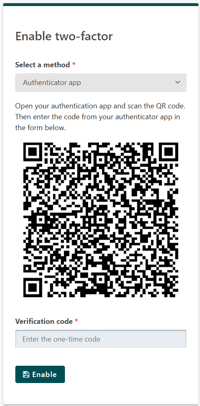
In order to set up MFA for yourself, first log into your workspace and click on the round icon in the top right corner, and choose "Profile". Then, under MULTI-FACTOR AUTHENTICATION (MFA), choose Manage MFA. You can choose between an authenticator app, email, or SMS.
 |
|
|
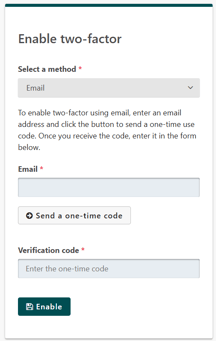
Choose your preferred authentication method and follow the steps shown on the page.
Once MFA is enabled, you will receive 10 recovery codes. Save these codes somewhere safe. They can be used if you lose access to your MFA method, for example if you lose your phone or cannot access your authenticator app, email, or SMS.
Each recovery code can only be used once.
Setting up required MFA in a workspace
The first time you log in to a workspace where MFA is enabled, you will be prompted to set it up. You can choose between an authenticator app, email, or SMS.
|
|
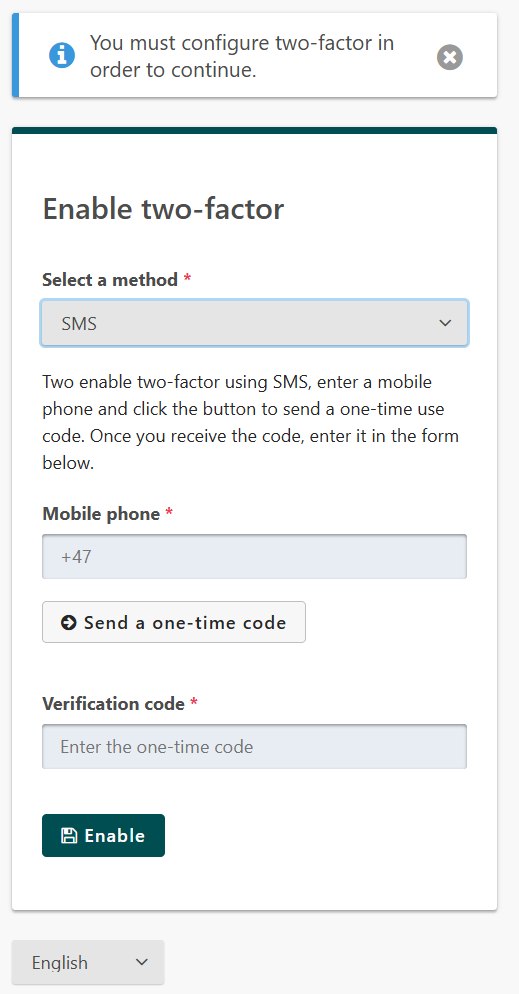 |
Choose your preferred authentication method and follow the steps shown on the page.
Once MFA is enabled, you will receive 10 recovery codes. Save these codes somewhere safe. They can be used if you lose access to your MFA method, for example if you lose your phone or cannot access your authenticator app, email, or SMS.
Each recovery code can only be used once.
After setup, you will be asked to verify your identity when logging in. Use your chosen authentication method and enter the verification code you receive.
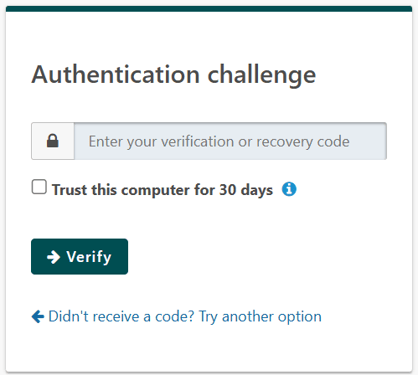
You can choose to trust the computer for 30 days if you want to skip MFA verification on that device during this period. This is only recommended for personal or trusted devices. Do not use this option on shared or public computers.
If you lose access to your MFA method, use one of your recovery codes to log in. If you do not have access to your recovery codes, contact Vitalthings Support for help.